
A dual-monitor setup can take up more space than it seems. Monitor size is important, but the diagonal alone does not tell you whether everything will fit comfortably. Start by entering your desk dimensions, monitor sizes and PC position in the TemplePC Desk Planner. This gives you a quick idea of how much space your setup will actually use.
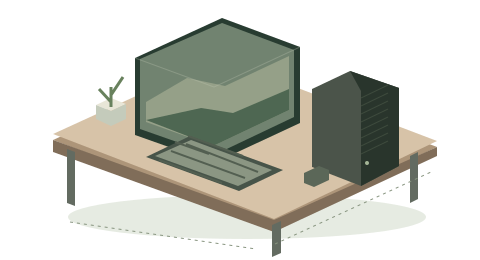
The planner shows an approximate layout. You can choose each monitor’s size independently, landscape or portrait orientation, and put the PC on the desk, under it or remove it. Stands are illustrative; the tool does not simulate the precise angle of the screens, cables, load capacity or ventilation under the desk.
The monitor stand matters
Two 27-inch monitors may fit across your desk, but their stands can cause problems. Some monitors, such as certain LG UltraGear models, use wide V-shaped feet that take up much more desk space than the screen itself. The stand can interfere with your keyboard, mouse or the stand of the second monitor. Before buying a monitor, check its full dimensions with the stand, not just the panel size. You also probably will not keep both monitors completely flat next to each other. The secondary monitor is usually turned slightly toward you. That angle changes how much width and depth the setup requires, so leave some extra room when planning it.
Think about where the PC will go
A PC tower on the desk can easily use another 20–30 cm of width. Putting it under the desk saves space, but it also changes how your cables need to be routed. For example, if the PC is on the right side of the desk, the DisplayPort or HDMI cable from the left monitor may need to travel across most of the desk before reaching the computer.
Do not forget the cables
With two monitors you need power cables and video cables for both displays. A 1.5 m cable may sound long enough until you have to route it behind the desk, down toward the PC and around other equipment. Check where your wall sockets or power strip are located as well. If they are far to one side, the power cable included with one of the monitors may not reach comfortably. It is usually better to have a little extra cable length than to stretch cables tightly across the setup.
The desk itself matters too
Even if everything physically fits, a weak desk can ruin the setup. Two monitors, a PC and other equipment add a surprising amount of weight. A lightweight or poorly supported desk may begin to wobble whenever you type, move the mouse or touch the desk, which also makes the monitors shake. So when choosing a desk, look at more than its width and depth. Check its construction, legs, cross-bracing and weight capacity too.
Plan before you buy
Use the TemplePC Desk Planner to check the basic layout first. Then check the real monitor stands, cable lengths and desk stability before buying your equipment. A setup that technically fits is not always a setup that will be comfortable to use.
Before you buy, check
- Desk width and depth, and the size of each monitor independently.
- Actual stand dimensions, keyboard space and room to move the mouse.
- PC position, legroom and ventilation clearance.
- The full cable route, socket locations and some cable slack.
- Desk stability and its load rating.