You find a game you want to play, then discover that it does not support your language. A few menu labels might be manageable. Documents, quest instructions and long conversations are another matter. Taking screenshots and switching to a translator every few lines soon interrupts the game.
An on-screen game translator reads visible text and displays a translation. I use Thaluna here because I develop it myself. This guide explains the setup and the checks I would make before treating any real-time translation overlay as a solution for a particular game.
Check the game’s language options first
Start with the language settings and the supported languages for your edition. Subtitles may need to be enabled separately, and different releases can have different options. A trustworthy community translation is also worth considering: carefully edited dialogue and consistent terminology can offer a better reading experience than an automatic overlay.
Screen OCR is another route when a suitable localization is unavailable or you prefer not to change game files. It works with the visible image rather than a translation patch prepared for one title. That makes the approach useful across different games, but it does not make every font or interface equally easy to read.
What an on-screen translator actually does
There are three stages. OCR recognizes the letters in an image, a translation model translates the extracted text, and the application displays the result. A mistake at the first stage can affect everything after it: a good translator cannot reliably recover an item name that OCR has misread.
Thaluna runs on Windows. Game Lens places automatic translation overlays over game text; Real-Time OCR can show the result in a floating window instead. This workflow reads visible text. It is not an official localization, a game-file replacement or translated voice acting. Thaluna’s game translation guide explains the modes.
Choose a mode for the text you need
Start with Game Lens for changing subtitles and dialogue. For one document, sign or static panel, try Manual Lens. If an overlay covers important interface elements, a separate Real-Time OCR translation window may be more comfortable. One mode does not need to handle every situation.
Set up Thaluna for your game
- Download the demo from the official itch.io page and open the application. Begin with an item description or dialogue box that can remain visible while you check the result.
- Set OCR Language to match the source text. Choose English for an English-language game. This controls recognition of the text on screen, not the language of the translation.
- In Translation Language, choose a backend, model and target language, such as Polish or another supported language. This is separate from the OCR language used to recognize the source text.
- Open Lens Mode, choose Game Lens and select the region containing the text you want to read. A focused dialogue or subtitle region is a better starting point than scanning the entire screen.
- Let the full sentence appear, then compare the translation with the original. Check several different passages and adjust the overlay’s readability before starting a longer session.
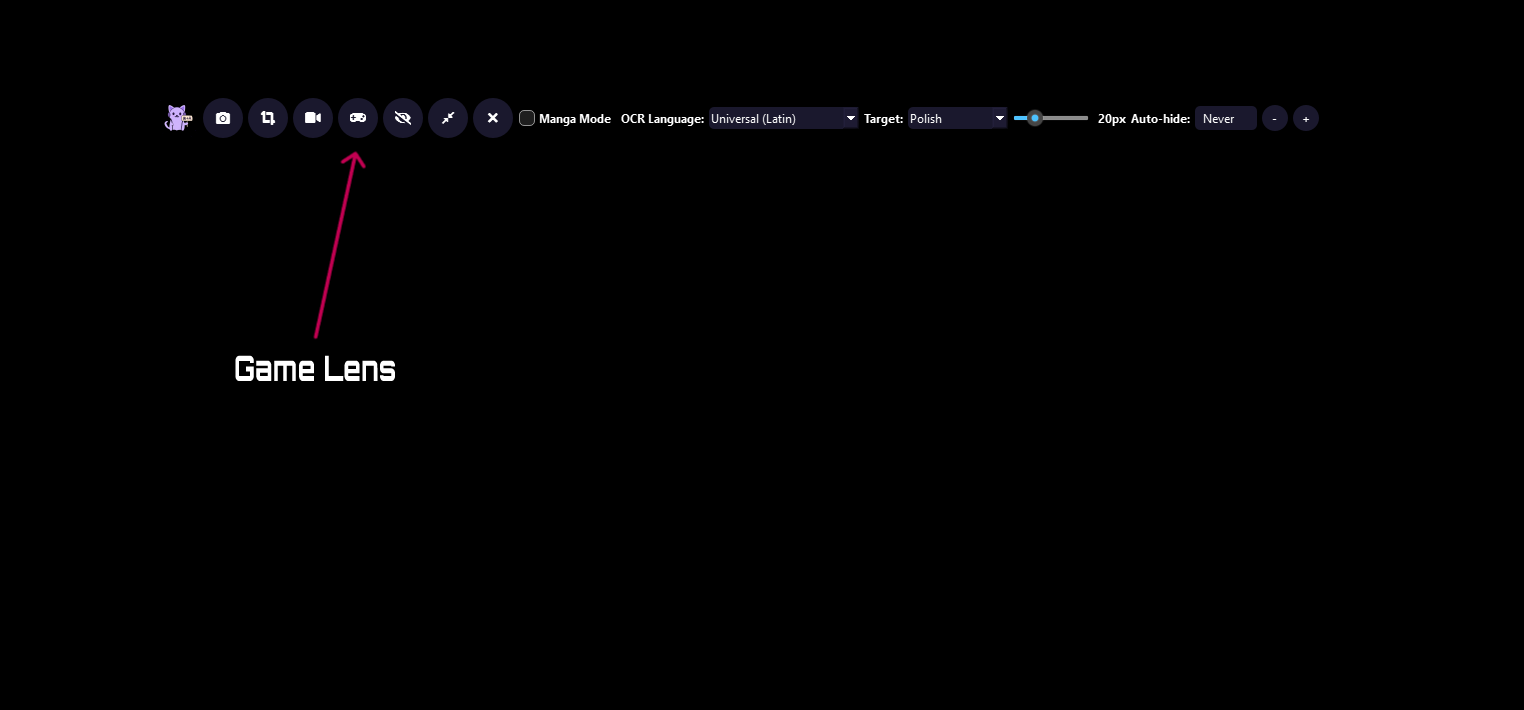
Menus and dialogue may appear in different areas, so you may need to change the capture region. Timing matters too: a correct translation that arrives after the subtitles disappear can still be difficult to follow. The complete setup guide shows the current interface and explains the available workflows.
3D, 2D and retro games — readable text matters
This approach can be useful across different types of games: 3D adventures, 2D titles, RPGs, visual novels and retro games running on a PC. The application reads visible text, so subtitles, dialogue boxes, menus and item descriptions are the starting point, rather than a specific engine or franchise.
The key question is whether the letters can be recognized clearly. Large, static dialogue text can be easier than small subtitles over a moving background. Pixel fonts or low resolutions can be obstacles in retro games, so it is worth trying image scaling and a focused capture region. Being a 3D or 2D game does not guarantee good results; try several passages from your own game.
Poor results? Check recognition before changing the translator
- Missing words or incorrect letters: check the OCR language, text size and whether the region cuts off a line.
- Unwanted labels or background text: narrow the region to the passage you actually need.
- Correct source text but an awkward translation: try another translation model.
- An intrusive overlay: adjust its appearance or try a separate translation window.
Do not judge the whole setup from one sentence. Try a short message, an item description and a conversation. Check recognition, meaning and reading time separately. This helps distinguish a font problem from a translation problem instead of repeatedly changing models to solve the wrong issue.
Local translation, cloud translation and costs
Thaluna supports built-in local models, Ollama, a compatible local API and optional OpenRouter translation using your own API key. The right choice depends on your language pair, hardware and quality expectations. There is no single model I would promise will suit every game. The translation quality guide covers the available approaches.
The full application is a one-time purchase; check itch.io for current pricing and downloads. That purchase does not include optional cloud usage charges. With OpenRouter, recognized text is sent to the selected service, so keep the capture region away from private messages or unrelated information.
Test your game before buying
Check your source and target languages, response time, readability and overlay behavior in the display mode you actually use. For online games, also check the rules for external tools. I do not claim universal compatibility with anti-cheat systems.
Automatic translation can miss a joke, a character’s intent or a name used earlier in the story. Treat it as reading assistance rather than assuming it matches an edited localization. Keep a way to inspect the original text when something seems wrong.
Start with the Thaluna demo and a few passages from your own game. If it makes the text comfortable to follow, an overlay can help you enjoy a title you previously set aside because of language. If it is too slow or inaccurate for your needs, the demo lets you find that out before buying.
What does the demo include?
The demo has a one-time limit of 30 successful translation cycles or 20 minutes of active translation, whichever comes first. Prepare a useful test passage before a longer trial. Check the download page for current files and terms.
Android and Linux are on the way
I am also working on Android and Linux versions of Thaluna. This guide currently describes the available Windows workflow. I am not announcing a release date or promising identical features on every platform yet. Progress will be shared on the application website.